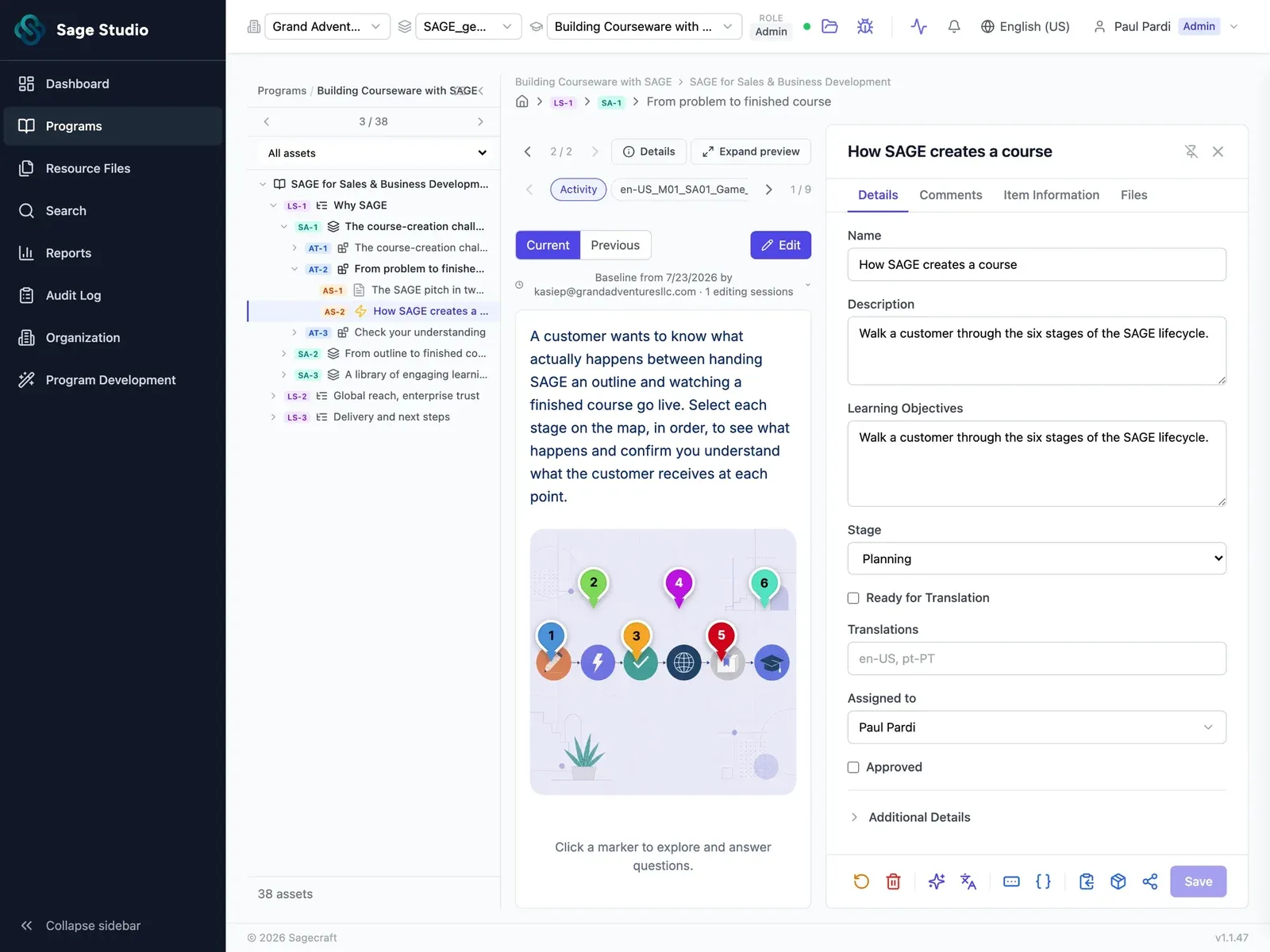
Review every asset with your team and SMEs in one place

Your instructional designers, reviewers, and SMEs comment on and edit the developed lessons, quizzes, and scripts in Sage Studio, right on the asset they're reviewing. Storyboard rounds and final review become one review cycle, with every comment, edit, and version kept in the same place.

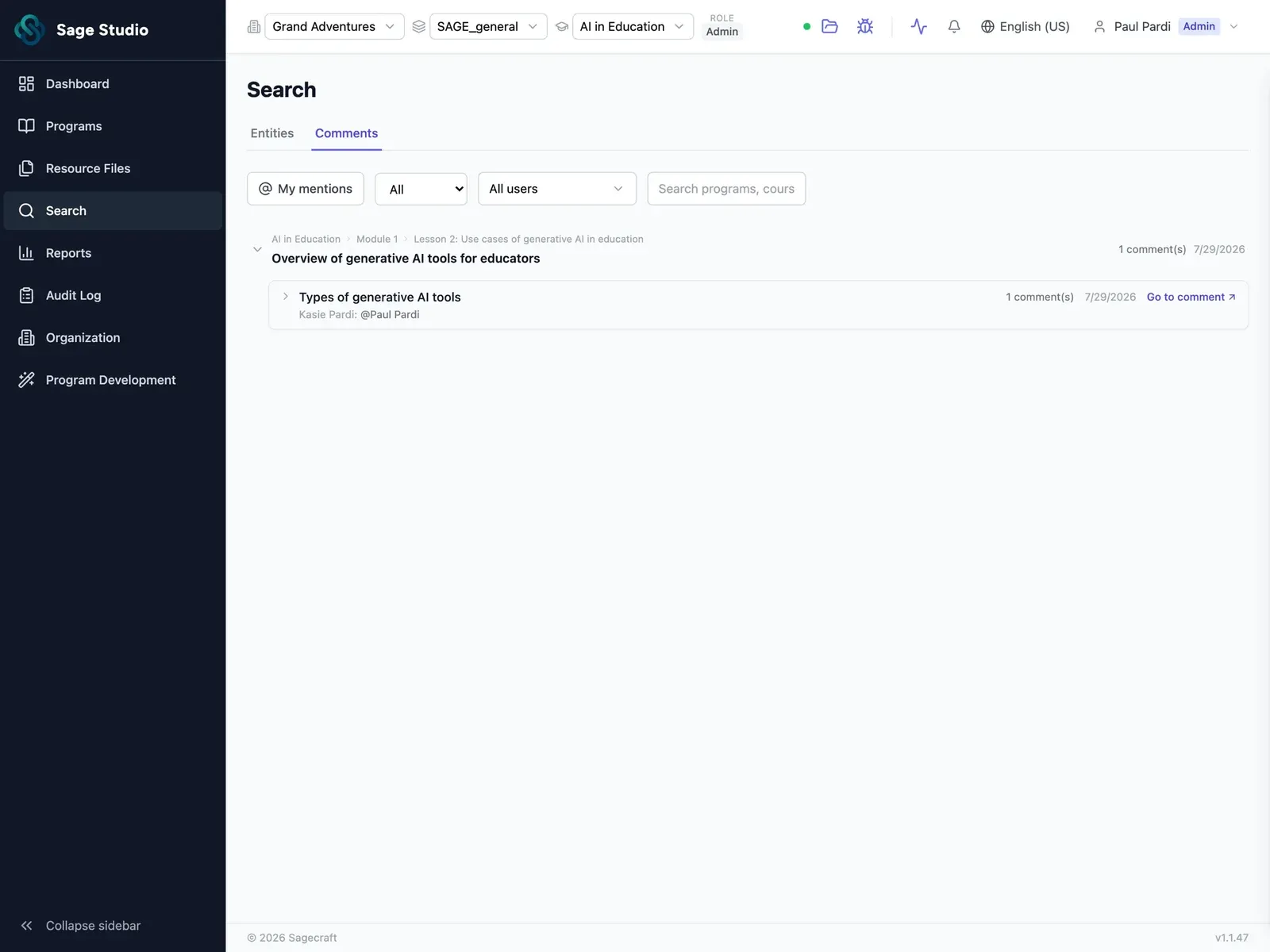
Sage Studio comments view: review comments listed against the specific lesson and asset they belong to.

Every review round starts a new email thread

Your storyboards go out for review, and the comments come back in an email, a Slack thread, and a marked-up PDF.

Your instructional designer works out which comment belongs to which lesson, makes the changes, and sends the developed assets out for a second round of review.

On a team of one to five, you're the one chasing SMEs through both rounds while the next release is already on its way.

Review the developed assets in one cycle

When storyboard review and final review are separate rounds, your SMEs give feedback twice and your instructional designer reconciles it twice.

In Sage Studio, your instructional designers, reviewers, and SMEs all review the developed assets in one place, so storyboard feedback and final review happen in the same cycle.

  • Assignments: assign any asset, lesson, or whole program to the reviewer or SME who owns it.
  • What's assigned, where it stands: see who has each asset and where it is in the workflow.
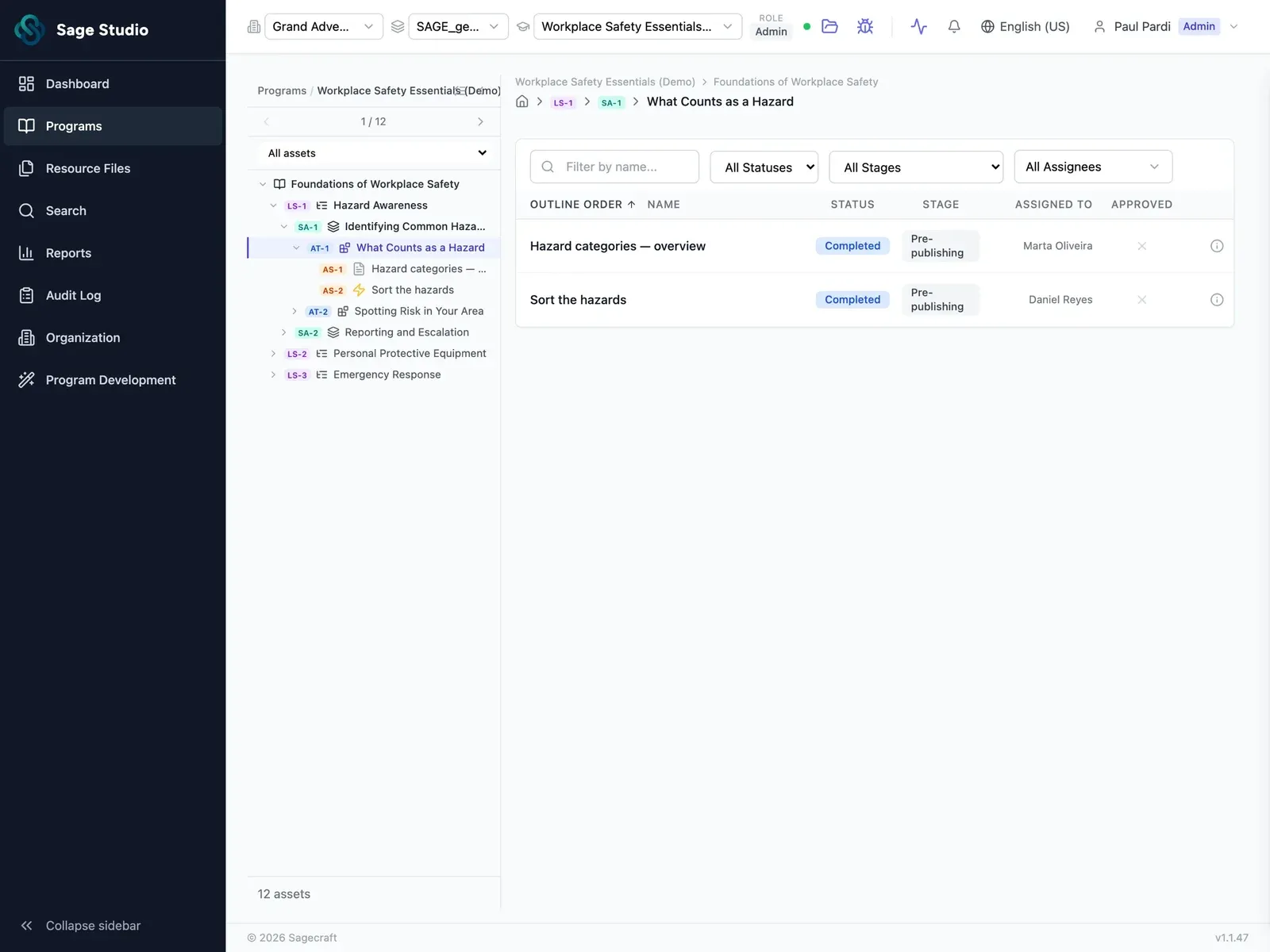
Sage Studio, Refine: Review the developed assets in one cycle (placeholder screenshot)

Comment on the exact asset that needs a change

A comment like "fix the third question" in an email thread leaves your instructional designer hunting for the quiz and the lesson it belongs to.

In Sage Studio, every comment sits on the exact asset it's about, and an @mention pulls in the SME or instructional designer who needs to answer it.

  • Comments on the asset: leave feedback on a specific quiz, video script, or activity.
  • @mentions: tag the SME who knows the answer, or the instructional designer who'll make the change.
Sage Studio, Refine: Comment on the exact asset that needs a change (placeholder screenshot)

Edit in place, with every version kept

Small fixes, like a renamed button in a script or a reworded quiz answer, wait in a list until your instructional designer gets back to that file.

In Sage Studio, your team makes the fix right in the asset they're reviewing, and version history keeps every earlier version of it.

  • In-place editing: anyone reviewing can change a lesson's wording, a quiz answer, or a single line of a script, right where they're reviewing it.
  • Regenerate: team members with permission can regenerate an asset completely.
  • Version history: see each earlier version of an asset, who changed it and when, and restore any version.
Sage Studio, Refine: Edit in place, with every version kept (placeholder screenshot)

One workflow for everyone who reviews

Instructional designers

Assign assets for review, answer comments, and make edits in place

Reviewers

Comment on lessons, quizzes, and scripts, and fix wording in place

SMEs

Check product accuracy on the exact asset, and @mention whoever needs to answer

Project managers

See what's assigned, where each asset is in the workflow, and every version of each asset

Next stagePublish

Once your team finishes review, Publish exports the learning experience to SCORM 1.2, Open edX, or a standalone package for your academy.

See how Publish works

Bring the review thread from your last release

Bring the email thread, doc, or spreadsheet your last review lived in, and see how the same review runs in one place in Sage Studio.

See Sage Studio in action

See Sage Studio in action

Pick a time for a 30-minute call with our team, with Sage Studio on screen.

  1. Pick a time
  2. Your details
  3. Done

Choose a day to see open times.