Give every team and partner its own workspace, built from the same source material

Set up a workspace for each product team or partner, and give admins, instructional designers, reviewers, and SMEs the access their role needs. Every workspace draws from one shared set of release notes, product docs, and SME notes, so adding a team or partner never means gathering the same sources again.

Sage Studio, Organization > Platforms: Loomwise's three workspaces (loomwise, customer-academy and partner-enablement), each marked Ready, with a field to create a new one.

Every new team or partner means gathering the same sources again

Partners want their own onboarding course, and a second product team wants its own catalog, and each one needs the same release notes and product docs.

On a team of one to five, that means collecting those sources again for every audience, and keeping track of which partner can see which files.

So each team works from its own copy of the docs, nobody's sure which one is current, and the gaps show up as support tickets.

A workspace for every team and partner

When each team keeps its own copy of the product docs, every release means updating all of them, and some never get updated.

In Sage Studio, each team or partner gets its own workspace, and source material can be shared across your whole organization, one workspace, or a single program, so every team starts from the same product docs.

  • Separate workspaces: one per product team or partner, each with its own programs.
  • Shared source material: add release notes, product docs, and SME notes once, at the organization, workspace, or program level, and everything under it can draw on them.
  • Updates when you choose: when a source changes, content you've already created stays as it is until your team updates it.
  • Kept apart: admins decide who can see each workspace and program, and your organization's data is always kept separate from every other organization's.
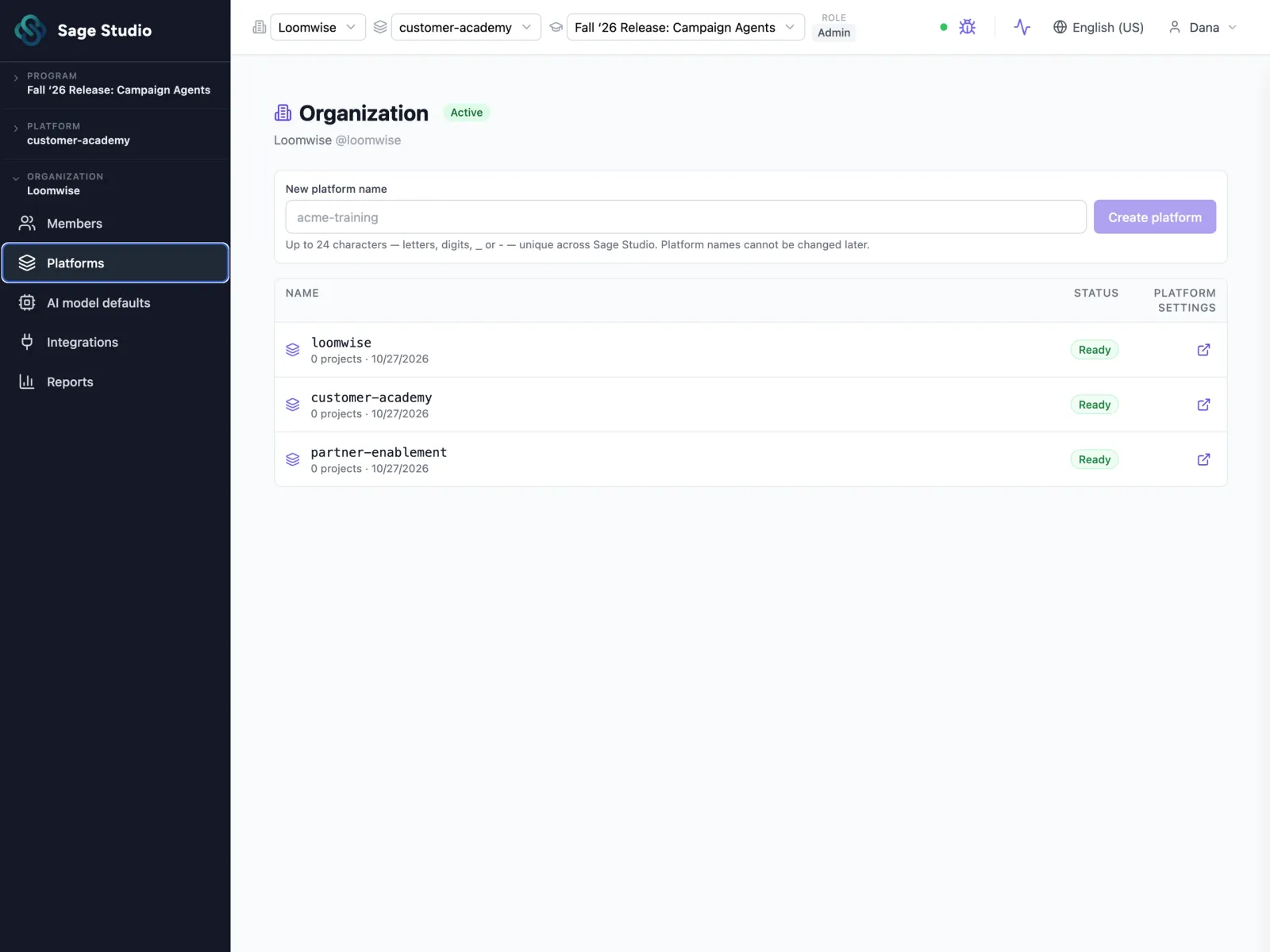
Sage Studio, Organization > Platforms: Loomwise's three workspaces (loomwise, customer-academy and partner-enablement), each marked Ready, with a field to create a new one.

The right access for admins, instructional designers, reviewers, and SMEs

When everyone works in one shared drive, an SME can overwrite a finished script, and nobody can tell which version the reviewer approved.

In Sage Studio, admins assign each person a role and decide what each role can do, so everyone gets the access their work needs, whatever their title.

  • Admins: set up workspaces, add people, and assign roles.
  • Permissions per role: decide who can design, build, regenerate, edit, or comment, in each workspace and program.
  • Any mix: let an SME build, or keep an instructional designer to reviewing and editing.
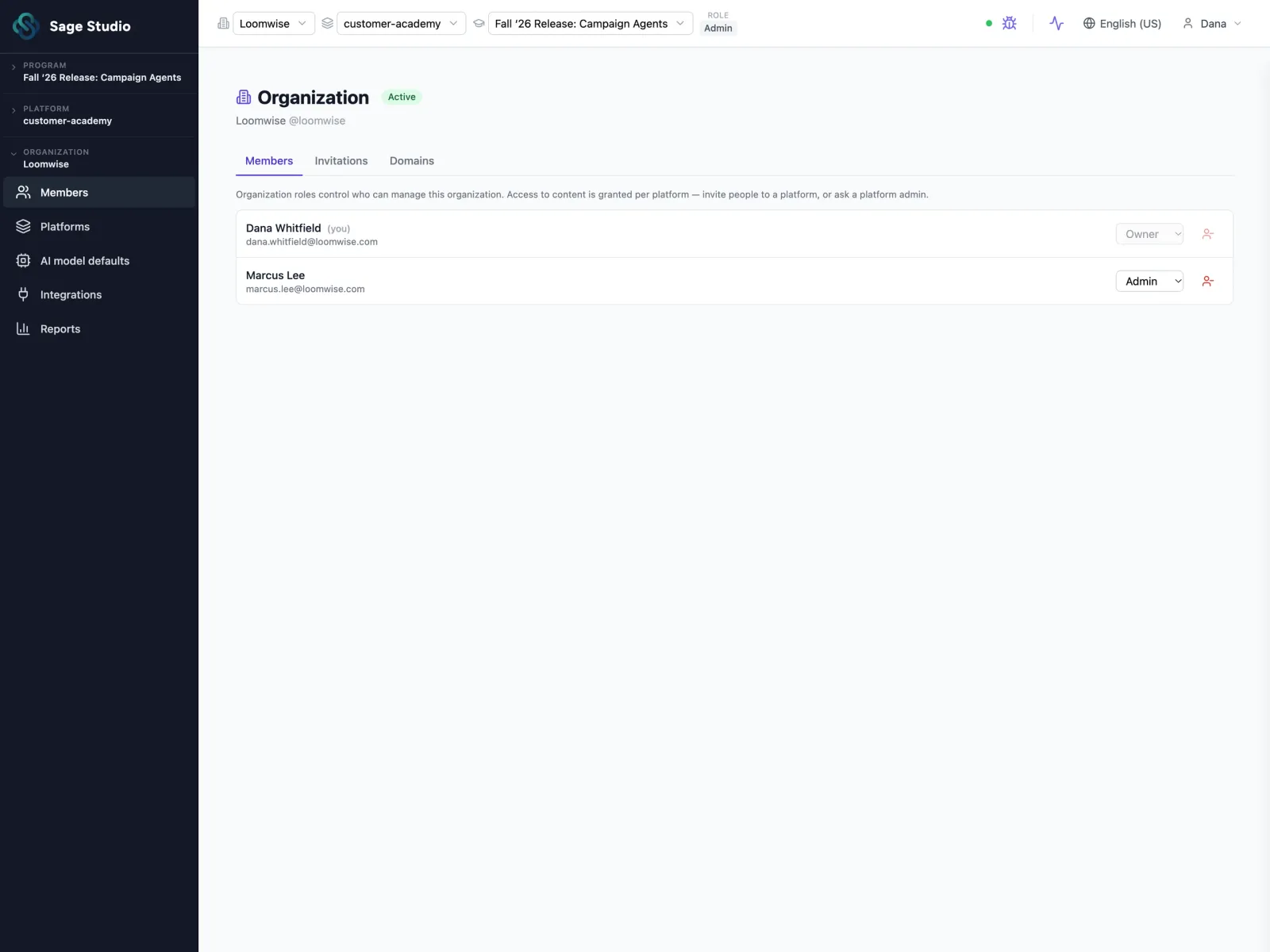
Sage Studio, Organization > Members: Loomwise's members, each with an organization role (Owner or Admin) that an admin can change.

Translate a learning experience from the version you already approved

Training content localization often means exporting files, sending them to a vendor, and rebuilding each translated course by hand.

Sage Studio generates the translated version from the learning experience your team already approved, so you skip the export and the rebuild.

  • Every asset: every asset type translates, from lessons and quizzes to video scripts and activities.
  • Same review: reviewers see every asset in every language in Refine. Edit the original and translate it again, or edit a translated asset on its own.
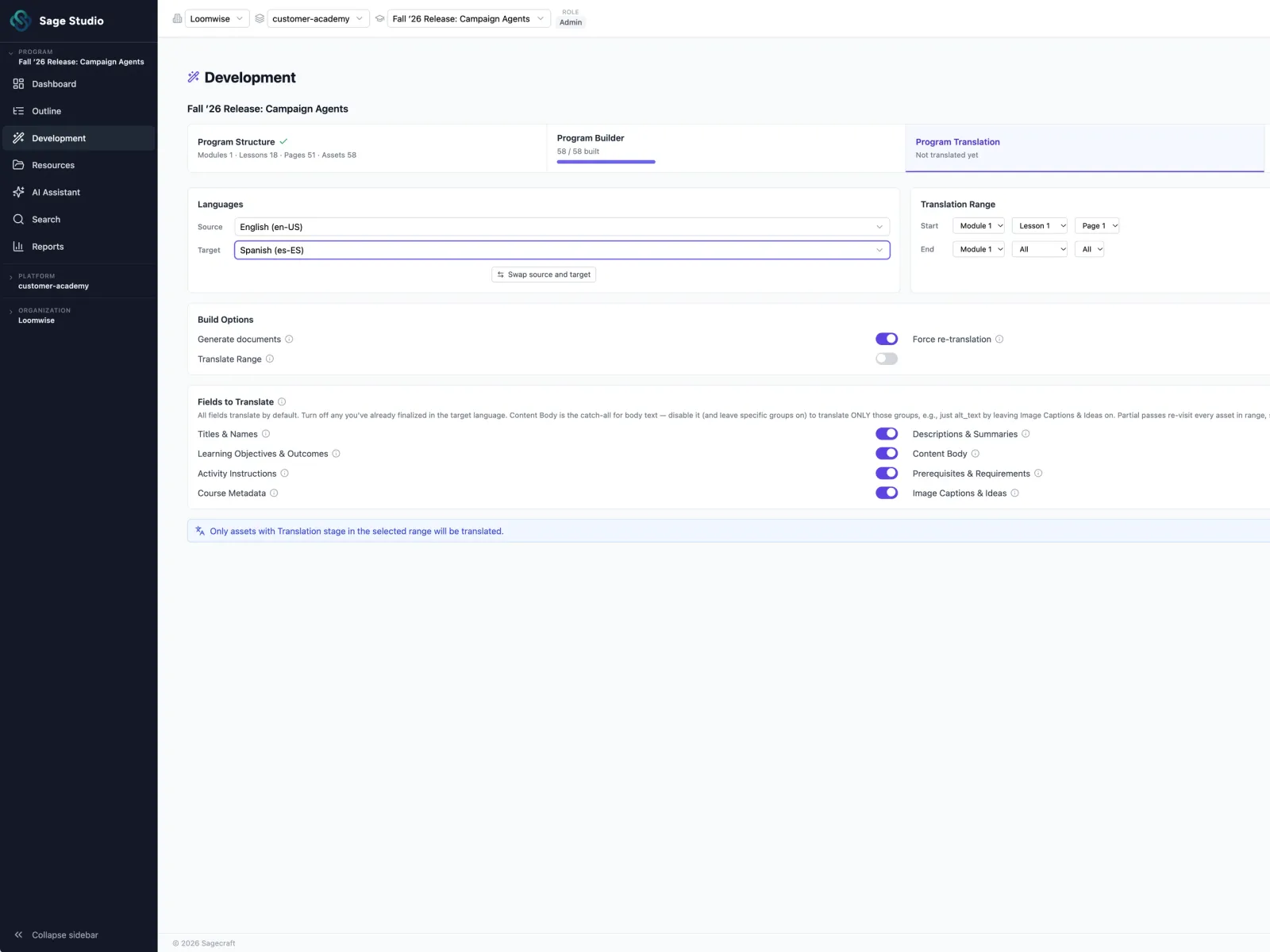
Sage Studio, Development > Program Translation: an English program set to translate into Spanish, with the range to translate and the fields to include.

Connect the sources and AI your team already uses

Your product knowledge lives in repositories, shared drives, and docs sites, and copying it into another tool by hand means it's out of date as soon as you finish.

Sage Studio connects to where your source material already lives, and your team chooses the AI assistant that drafts from it.

  • Your sources: connect GitHub, Microsoft 365, and the web pages you choose.
  • Your choice of AI: choose the assistant and model your team uses, starting from the ones we recommend.
  • Your list: bring the tools you use to the demo, and see where each one stands.
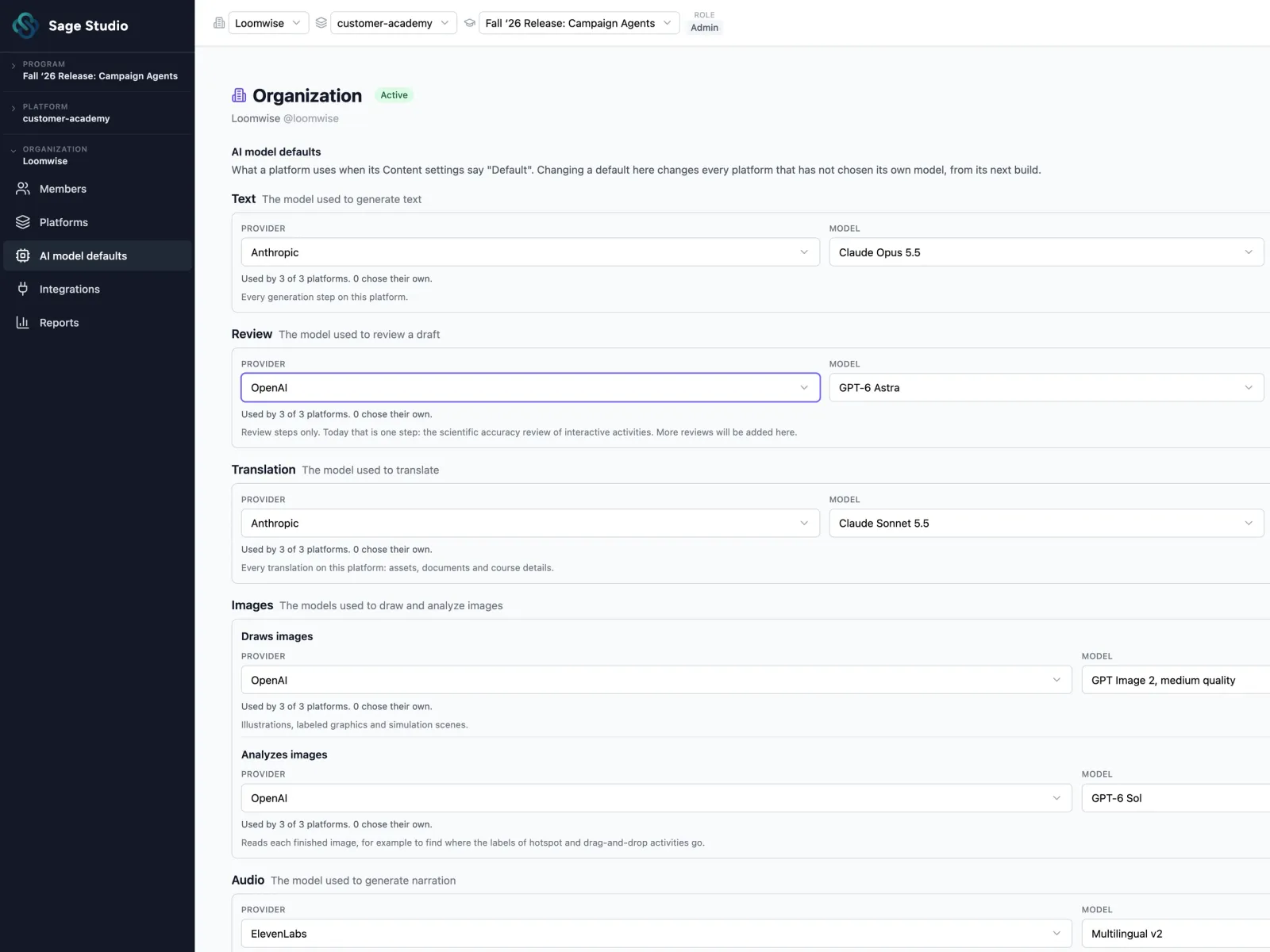
Sage Studio, Organization > AI model defaults: the provider and model each platform uses to generate text, review drafts and translate.

Bring the teams, partners, and languages you're planning for

Tell us which teams and partners you build for and which languages your customers need, and see how Sage Studio sets up a workspace for each.

See Sage Studio in action

See Sage Studio in action

Pick a time for a 30-minute call with our team, with Sage Studio on screen.

  1. Pick a time
  2. Your details
  3. Done

Choose a day to see open times.