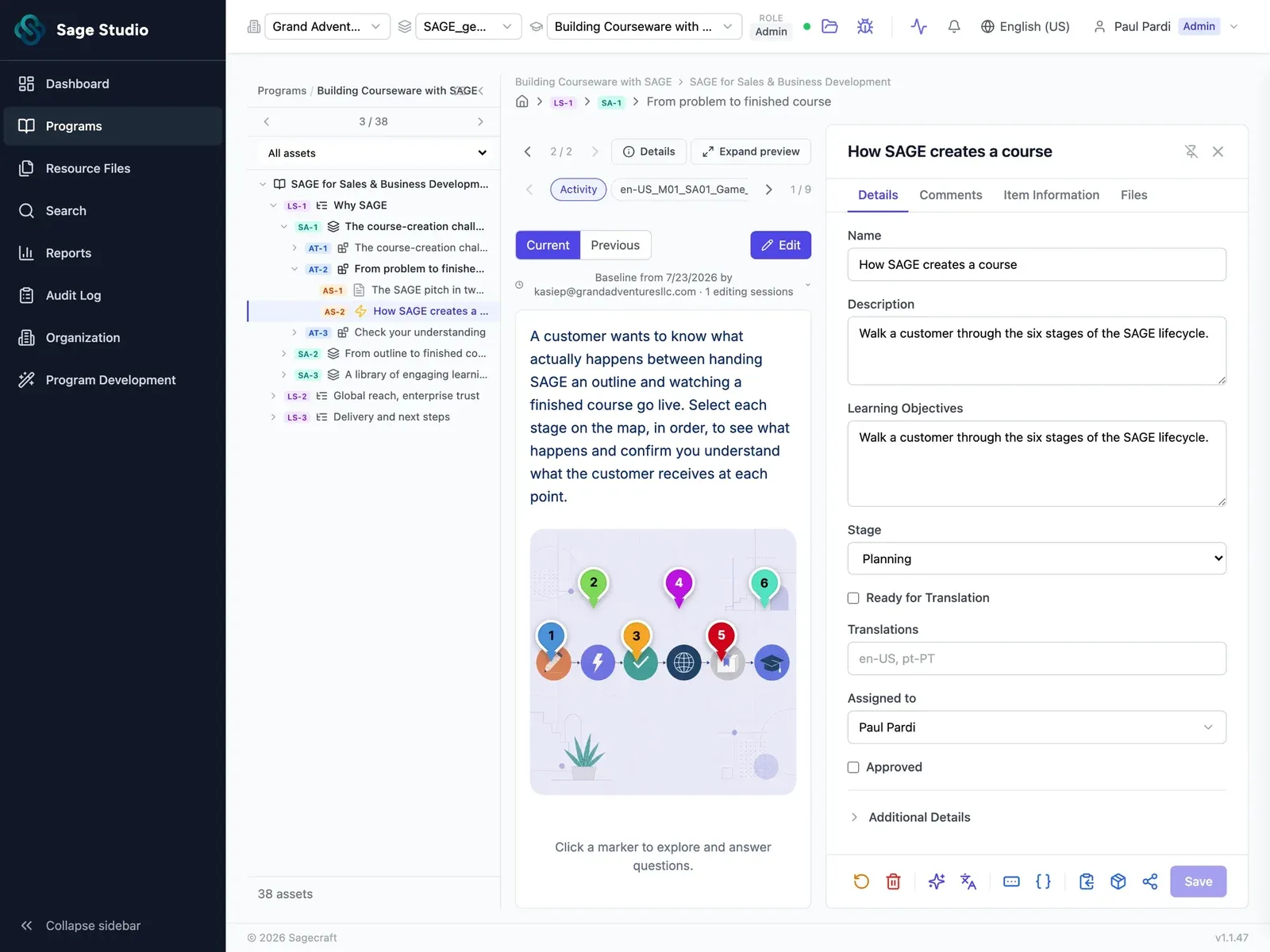
Start every learning experience from the source material you already have

Bring in this release's notes, product docs, slide decks, and SME interviews in whatever shape they're in. Sage Studio turns them into an outline with a set scope and learning objectives, and your designer decides what stays before any asset gets built.

Sage Studio workspace: a program outline in the left panel, with a lesson open and its assets listed by status, stage and assignee.

Continuous releases leave no time for design

A release lands, and before anyone designs a lesson, someone has to read every release note, product doc, and SME interview to work out what changed and what customers need to know.

On a team of one to five, that someone is usually you, and the same reading starts over two weeks later.

So design gets squeezed into whatever time is left, and the content that follows drifts from the objectives it was meant to hit.

Bring in every source, in any shape

The knowledge for one learning experience sits in a release note, a PM's slide deck, a PDF spec, and the transcript of an SME call.

Bring all of them into one design in Sage Studio, and every source sits next to the outline it feeds.

  • Any format: product docs, release notes, slide decks, PDFs, SME interview notes, and transcripts.
  • Live sources: connect the sources that change with your product, and check them for updates, so each design draws from the current version.
  • Evergreen style guides: add your style guide and standing references alongside each release's sources.
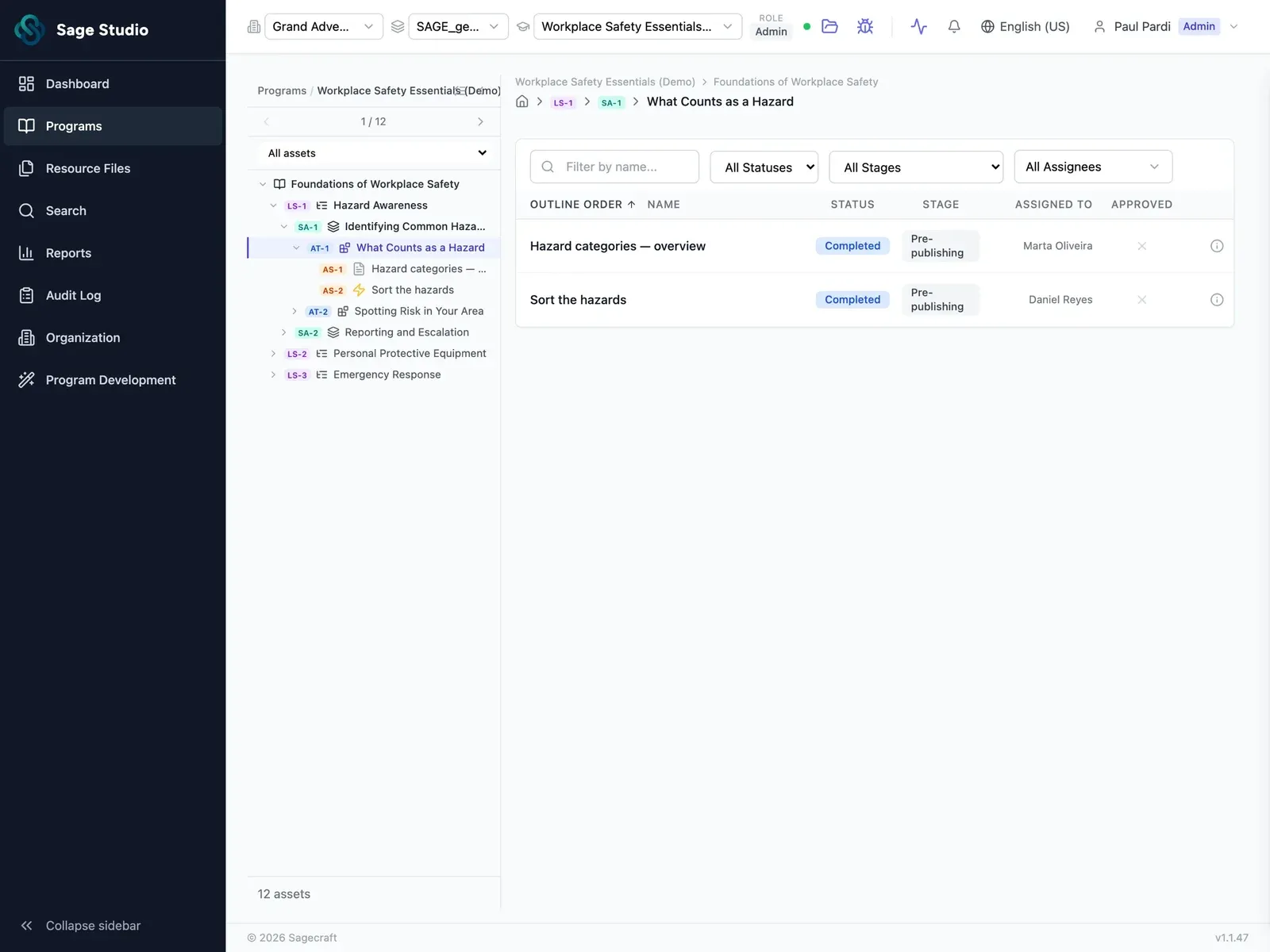
Sage Studio, Design: Bring in every source, in any shape (placeholder screenshot)

Set the framework, objectives, and scope first

An AI draft that ignores your objectives turns into rework, because your designer has to rebuild it around them afterward.

In Sage Studio, your designer sets the framework, the learning objectives, and the scope first, and every outline is built from them.

  • ID frameworks: choose the instructional design framework each design follows.
  • Learning objectives at the right level: set each objective at the Bloom's level each audience needs, from knowing a feature exists to using it on their own.
  • Scope, in and out: mark what this learning experience covers and what it leaves out, so a minor release gets a learning experience sized to it.
Sage Studio, Design: Set the framework, objectives, and scope first (placeholder screenshot)

Fix the outline before any asset exists

Once storyboards, scripts, and quizzes exist, moving one lesson means reworking every asset tied to it.

In Sage Studio, your designer reorders, adds, or cuts lessons in the outline before a single asset gets built, so Build starts from a structure they've already approved.

  • Reorder lessons until the sequence matches how customers use the feature.
  • Add the lesson for the edge case your SME mentioned at the end of the call.
  • Cut anything outside the scope you set.
Sage Studio, Design: Fix the outline before any asset exists (placeholder screenshot)

What goes in, what comes out

Your designer makes the calls on framework, objectives, scope, and outline. Sage Studio turns those calls and your sources into the structure.

What goes in

Release notes
Product docs and PDFs
Slide decks
SME interview notes and transcripts
Live sources and your style guide
Sage
Studio

What comes out

Scope: what's in, what's out
Learning objectives, set at the right level
The ID framework the design follows
An editable outline of every lesson
A design ready to send to Build

Next stageBuild

Once your designer approves the outline, Build drafts every storyboard, video script, quiz, and activity from it, grounded in your sources and your standards.

See how Build works

Bring the source material from your next release

Bring the release notes, docs, and SME notes you're working from right now, and see the outline Sage Studio turns them into.

See Sage Studio in action

See Sage Studio in action

Pick a time for a 30-minute call with our team, with Sage Studio on screen.

  1. Pick a time
  2. Your details
  3. Done

Choose a day to see open times.