Every asset drafted at once, from your design and your standards

Drafting the storyboards, video scripts, quizzes, and activities for one learning experience can take weeks, and the next release doesn't wait. Sage Studio uses AI to draft all of them at the same time from your approved outline, your sources, and your standards, so your team starts reviewing the same day.

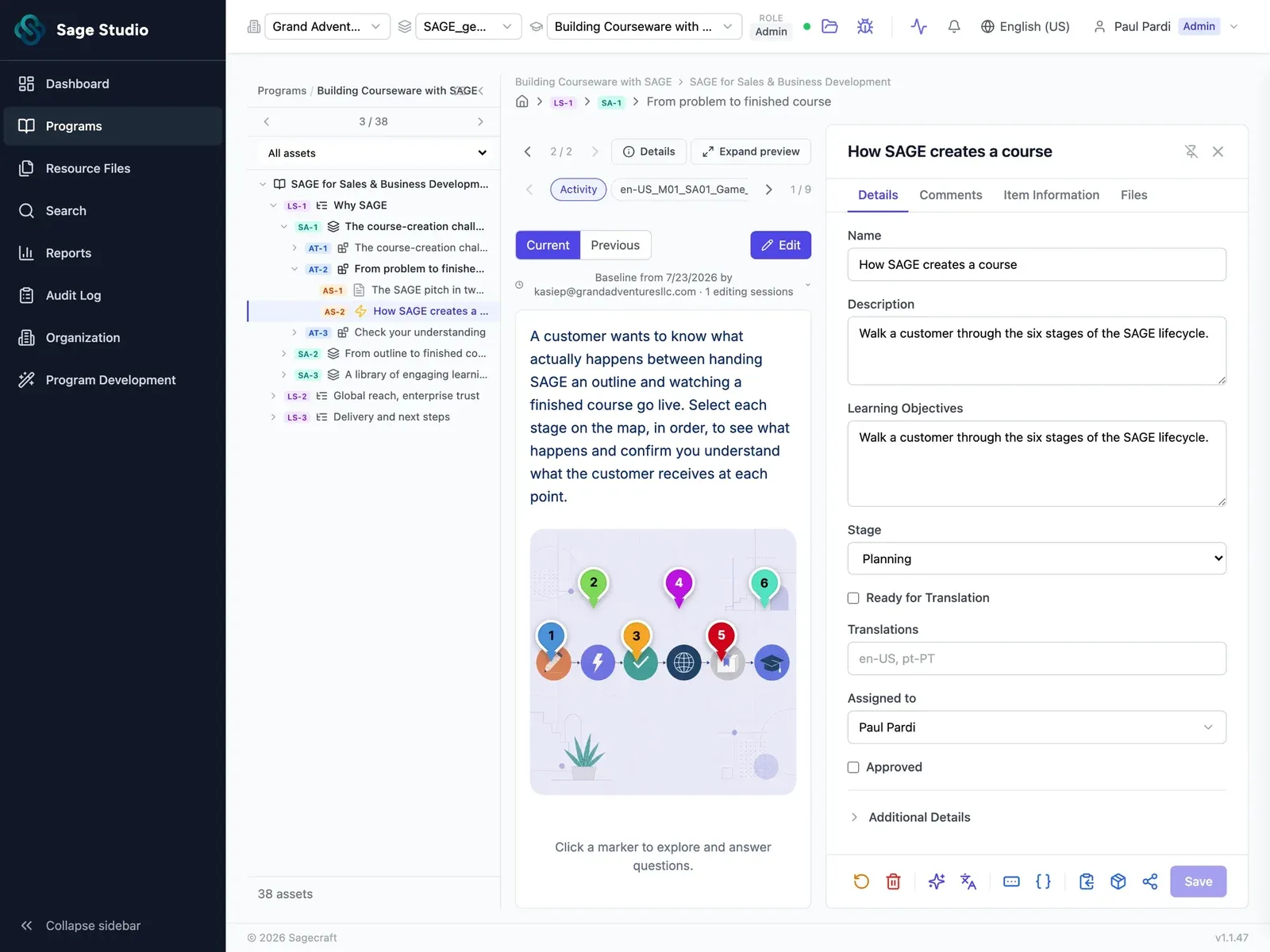
Sage Studio asset view: an interactive activity previewed in the middle, with its details panel.

The next release ships before the drafts are done

Once the outline is approved, someone still has to write every storyboard, video script, quiz, and activity, one asset at a time.

On a team of one to five, that's weeks of drafting for a single learning experience, and two more releases can land before it's finished.

And when a generic AI tool writes the first drafts, they come back in someone else's language, so the hours it saved go into rewriting.

Draft every asset at the same time

When assets get drafted one at a time, the last activity for a learning experience shows up weeks after the first storyboard.

Sage Studio drafts every storyboard, video script, assessment, and interactive activity for the learning experience at the same time, so your team can review the whole set the same day.

  • Storyboards for each lesson in your outline.
  • Video scripts for the walkthroughs and explainers your outline calls for.
  • Assessments in multiple choice, fill-in-the-blank, true/false, and other question types.
  • Interactive activities that give customers practice inside the lesson.
Sage Studio, Build: Draft every asset at the same time (placeholder screenshot)

Drafted from your design and your sources

An AI draft that starts from a blank prompt ignores your outline and fills the gaps with general content, and your team has to check every line against the product.

Sage Studio builds every draft from the outline and learning objectives your designer approved in Design, and draws the content from your own product docs and source material.

  • Built from your design: every asset follows the objectives, scope, and lesson order set in Design.
  • Grounded in your sources: drafts draw on the release notes, product docs, and SME notes you brought into Design.
Sage Studio, Build: Drafted from your design and your sources (placeholder screenshot)

Start every draft from your standards

Your voice, your terms, and the way your team writes a quiz question live in a style guide and in your senior designer's head, so every new draft needs the same corrections.

Upload your voice, style, and standards to Sage Studio once, and every draft for every learning experience starts from them.

  • Voice and style: upload your style guide, and every draft follows the tone, terms, and formatting your academy uses.
  • Your standards: upload the rules your team holds every asset to, and Sage Studio drafts from them.
  • A starting point for review: your team still reviews and edits every asset in Refine, starting from drafts set up with your voice and style.
Sage Studio, Build: Start every draft from your standards (placeholder screenshot)

Every kind of practice, drafted with the rest

Sage Studio drafts 55 interactive asset types, from drag and drop to crosswords, in the same step as the lessons and scripts around them.

  • Image HotspotAn interactive image with clickable areas that reveal information.
  • Drag and DropA drag-and-drop matching or sorting activity.
  • CrosswordA crossword puzzle with clues and answers.
  • Flash StackA stack of flippable flashcards for self-paced review.
  • TimelineA chronological timeline of events or steps.
  • Memory GameA card-matching memory game to reinforce associations.
  • CategorizeSort items into the correct categories.
  • Game MapMap-based exploration with popup info at each location and per-location quiz questions.
  • Fill in the BlanksType or select the correct words to complete a passage.
  • AccordionExpandable sections that reveal content when clicked.
  • Single ChoiceA set of single-select questions with text options.Also with image, audio, multi-question, data table
  • Word SearchFind hidden words in a letter grid.
  • ProcessA step-by-step process or workflow visualization.
  • Image SequencingArrange images in the correct order.
  • Interactive BookPaged component combining image hotspots and single-choice questions per page.
  • Text PopupHighlighted terms that reveal definitions or details on click.
  • Mark the WordsIdentify and select specific words or phrases in a passage.
  • Audio HotspotAn audio clip with timed interactive hotspot moments.
  • Tab InteractionTabbed panels that organize content into switchable views.
  • Drag the WordsDrag words into blanks within a text passage.
  • Flash GridA grid of flashcards for quick review of terms and concepts.
  • Order ParagraphsReorder scrambled paragraphs or steps into the correct sequence.
  • Image PairingMatch pairs of related images together.
  • True or FalseA single true-or-false question with feedback.Also with audio, multi-question, data table
  • Character Dialog BoxA character image with a named speech bubble for dialog-style content.
  • Label the DiagramDrag image labels onto a diagram to complete it.
  • Multiple SelectionSelect all correct answers from a list of text options.Also with image, audio, multi-question
  • GlossaryAn alphabetized list of terms with definitions.
  • Dictation Hover and ClickListen to audio and click the correct word or phrase.
  • Interactive Text BookMulti-page reading comprehension with text passages, images, and per-page quiz questions.
  • Fill-in-Blank TableTable-based fill-in-the-blank with typed answers and an answer bank.
  • Audio ReviewAn audio clip paired with review questions.
  • Drag and Drop TextDrag text labels to match or complete a diagram or passage.Also with audio
  • Info TextAn informational text panel with optional adornment and detail images.
  • Offline ActivityDownloadable/printable worksheet with self-reported completion tracking.
  • Open DynamicA custom interactive HTML activity rendered in an isolated iframe.

Next stageRefine

Every draft moves to Refine, where your team and SMEs comment on any asset, check its version history, and rebuild only the assets that need changes.

See how Refine works

Bring the outline for your next release

Bring the release notes, product docs, and style guide for something you're building right now, and see the drafts Sage Studio builds from them.

See Sage Studio in action

See Sage Studio in action

Pick a time for a 30-minute call with our team, with Sage Studio on screen.

  1. Pick a time
  2. Your details
  3. Done

Choose a day to see open times.