One platform to design,
build, refine, and publish
learning experiences
Sage Studio by Sagecraft is the AI-native customer education platform for software companies. It turns your product docs and release notes into learning experiences for your academy and help center, and keeps them current as you ship.
Turn your messy source material into a structured learning design
With continuous releases, there's no time for the most time-consuming part of design: reading every release note, product doc, and SME interview to find what matters.
With Sage Studio, your designer turns that source material into a structured design, with a clear scope and defined learning objectives.
Learn more about Design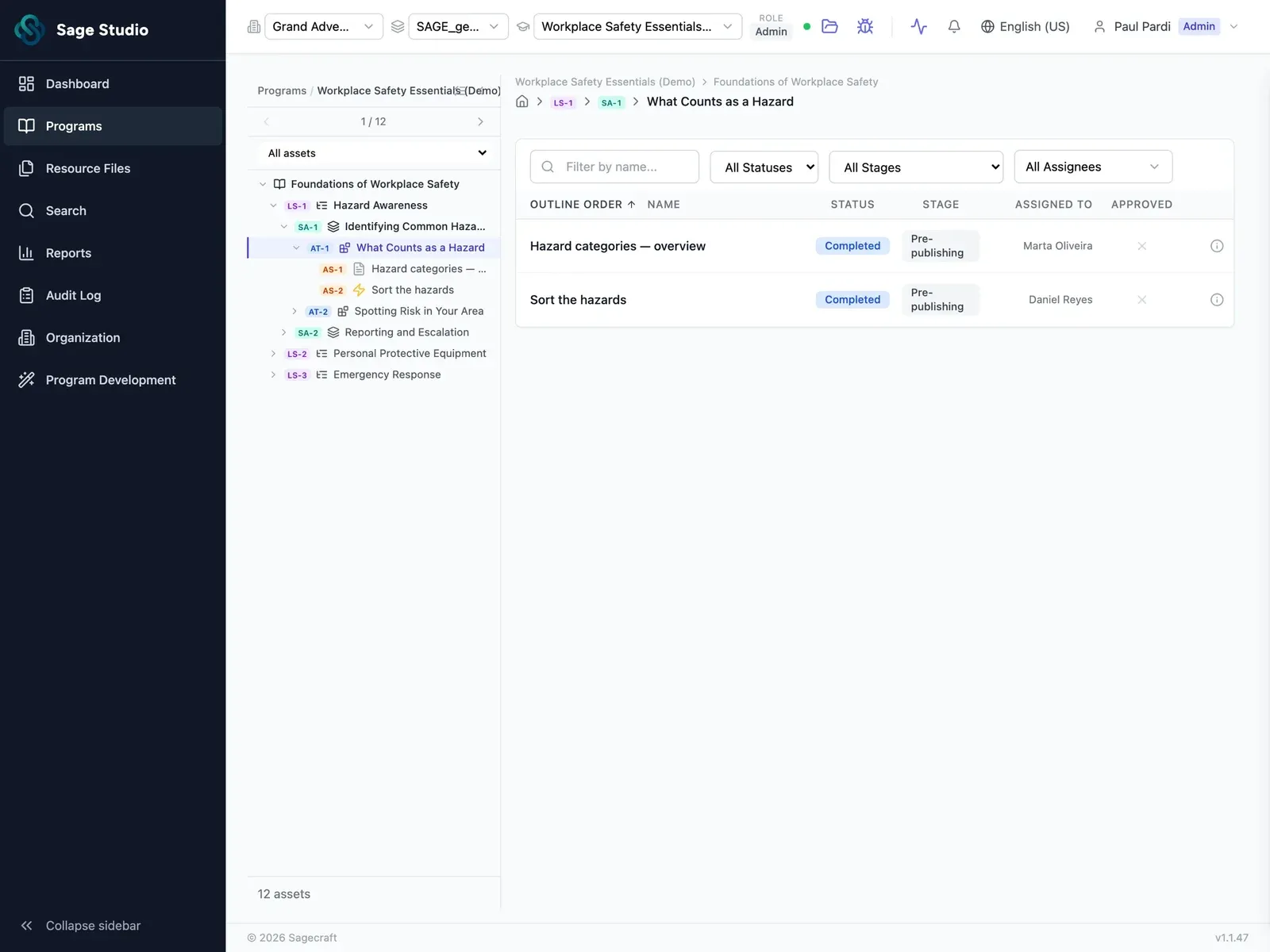
Weeks of drafting, done in one step
Drafting the storyboards, video scripts, quizzes, and activities for one learning experience can take weeks, and the next release doesn't wait.
Sage Studio uses AI to draft every asset simultaneously, straight from your source material and approved design, so your team can start reviewing the same day.
Learn more about Build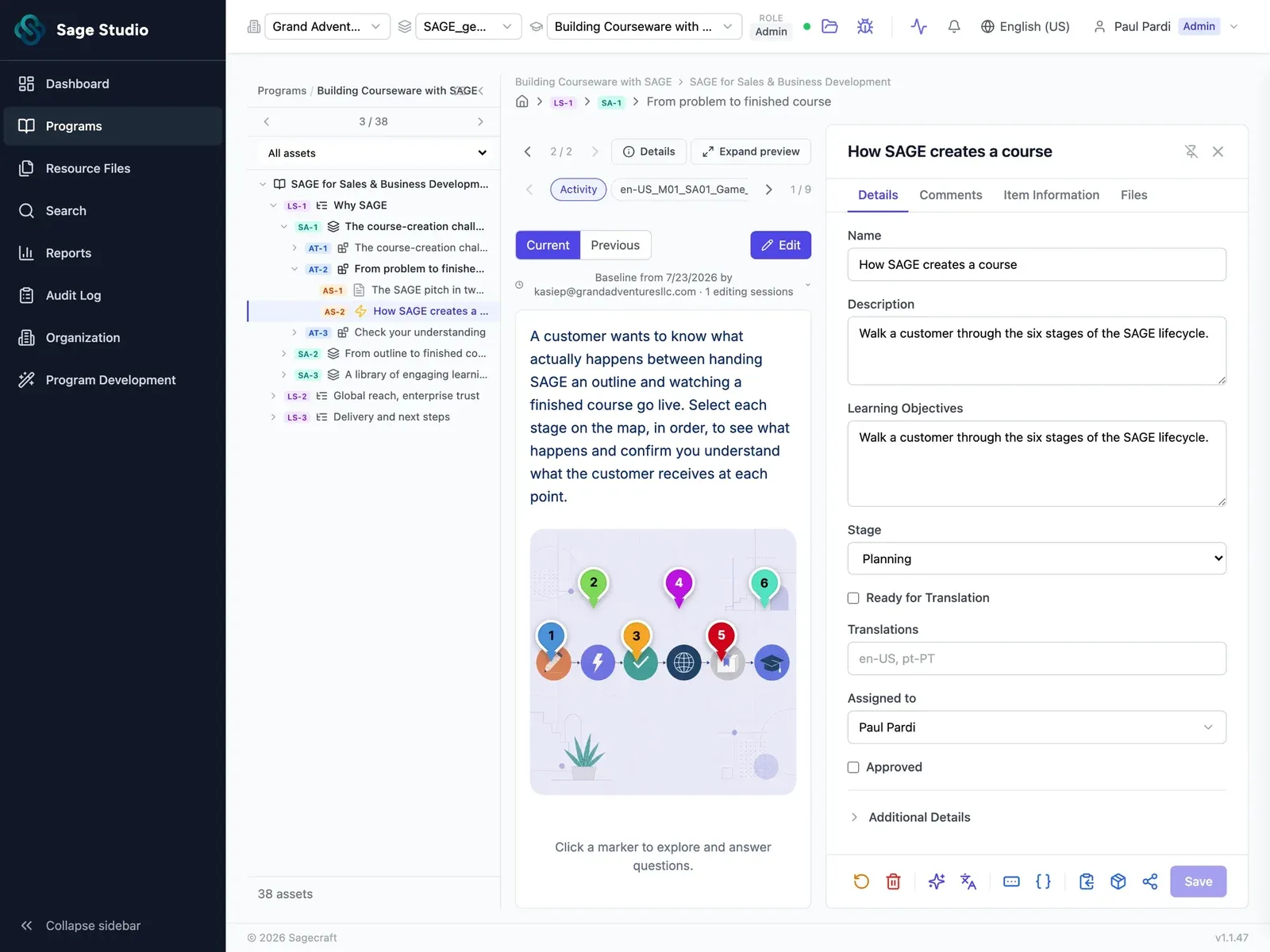
One workflow for designers, reviewers, and SMEs
The storyboard gets designed, reviewed, revised, and reviewed again before development starts, then the developed course gets reviewed one more time.
In Sage Studio, your team reviews the developed assets once, so a learning experience reaches approval in one review cycle.
Learn more about Refine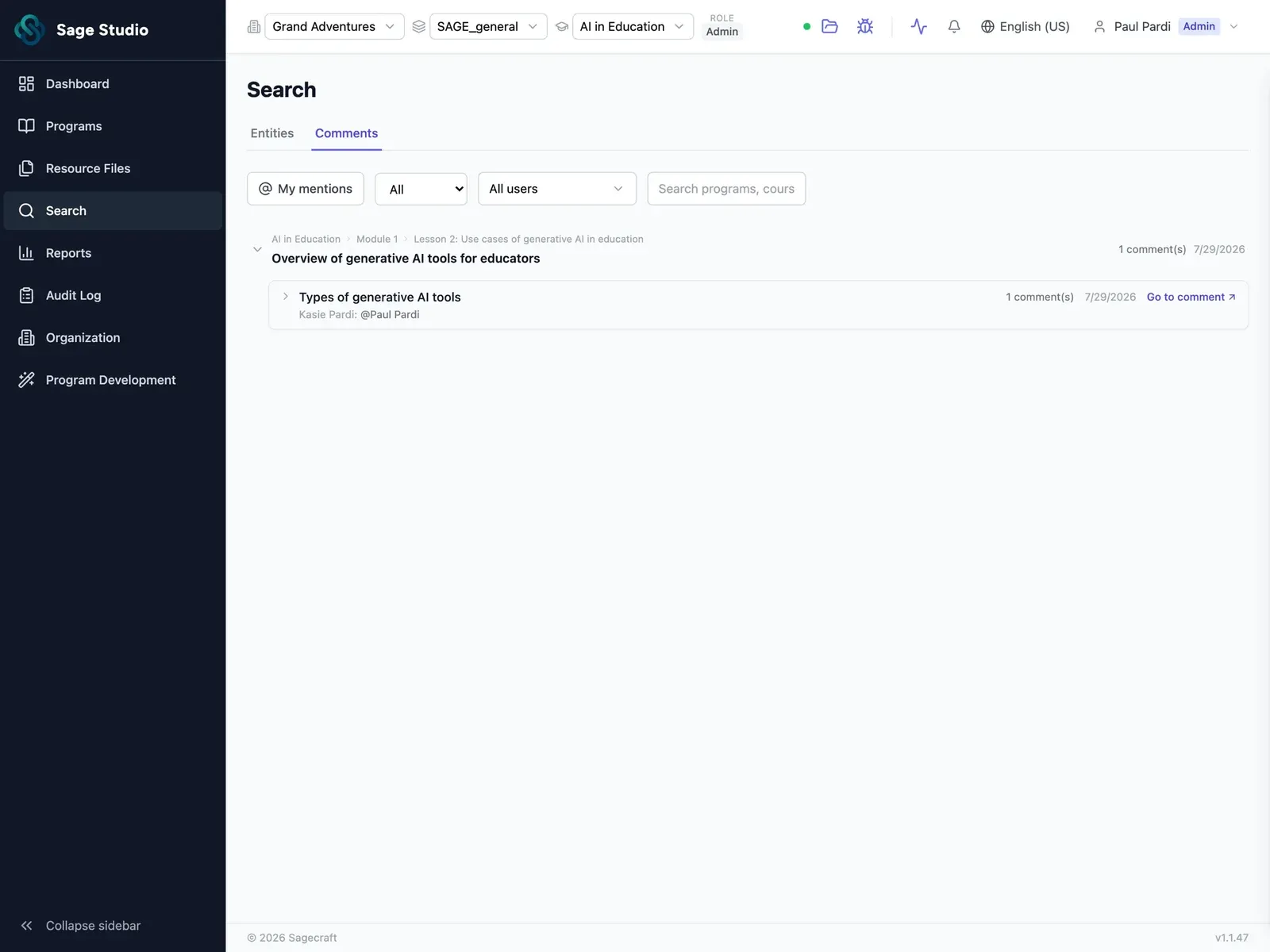
Build once, publish wherever customers learn
Every LMS has its own formats and requirements, so teams pick the destination first and then build around its limits.
Sage Studio keeps building and delivery separate, so one learning experience can go to your LMS, your help center, and your product.
Learn more about Publish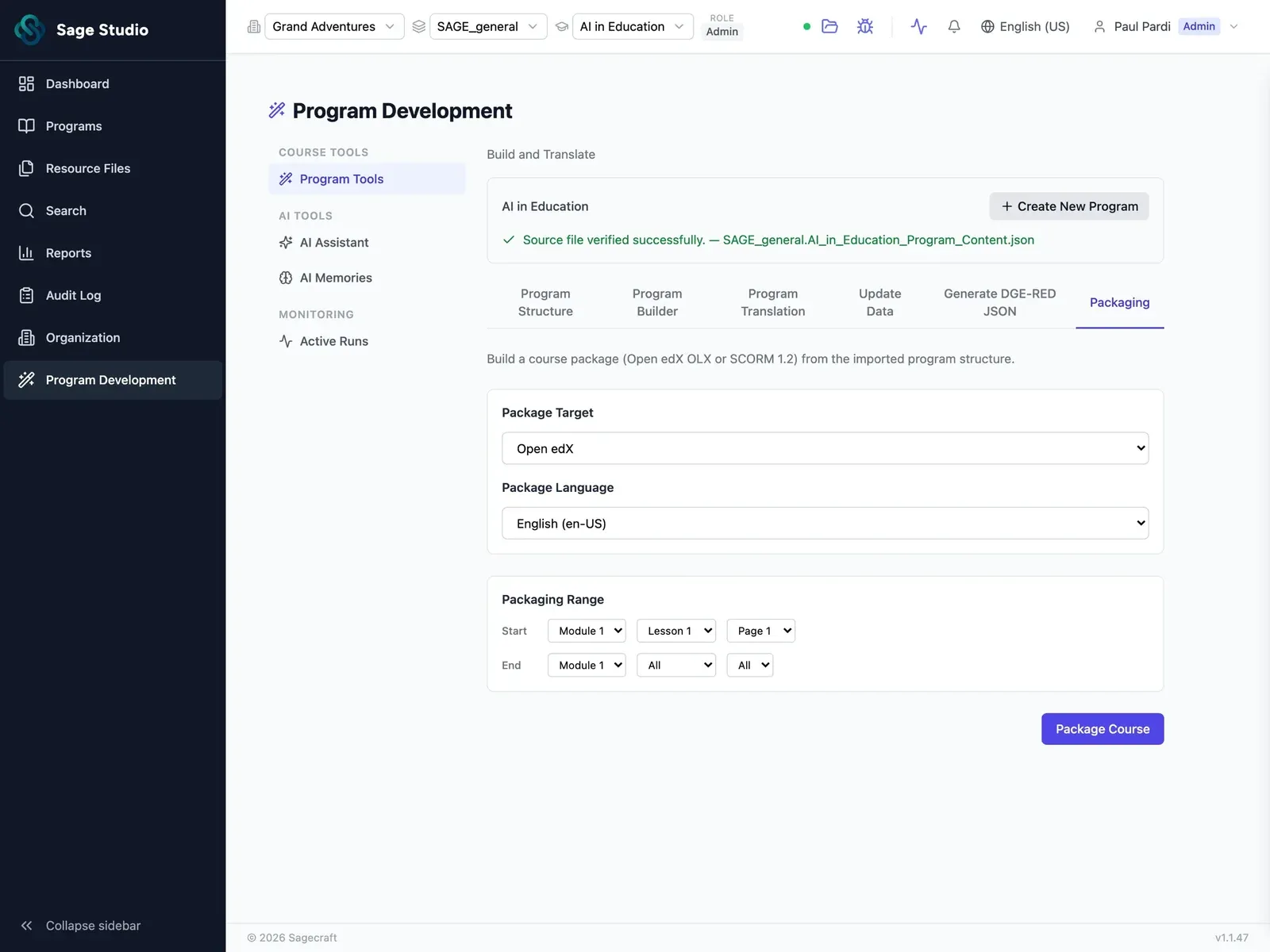
Manage
Run every team, audience, and language from one place
Every new partner, region, or language means another version of the same learning experience to build and keep in step.
Sage Studio gives each team its own workspace drawing on shared source files, with roles for who edits and who approves, and AI translation built in.
Learn more about Manage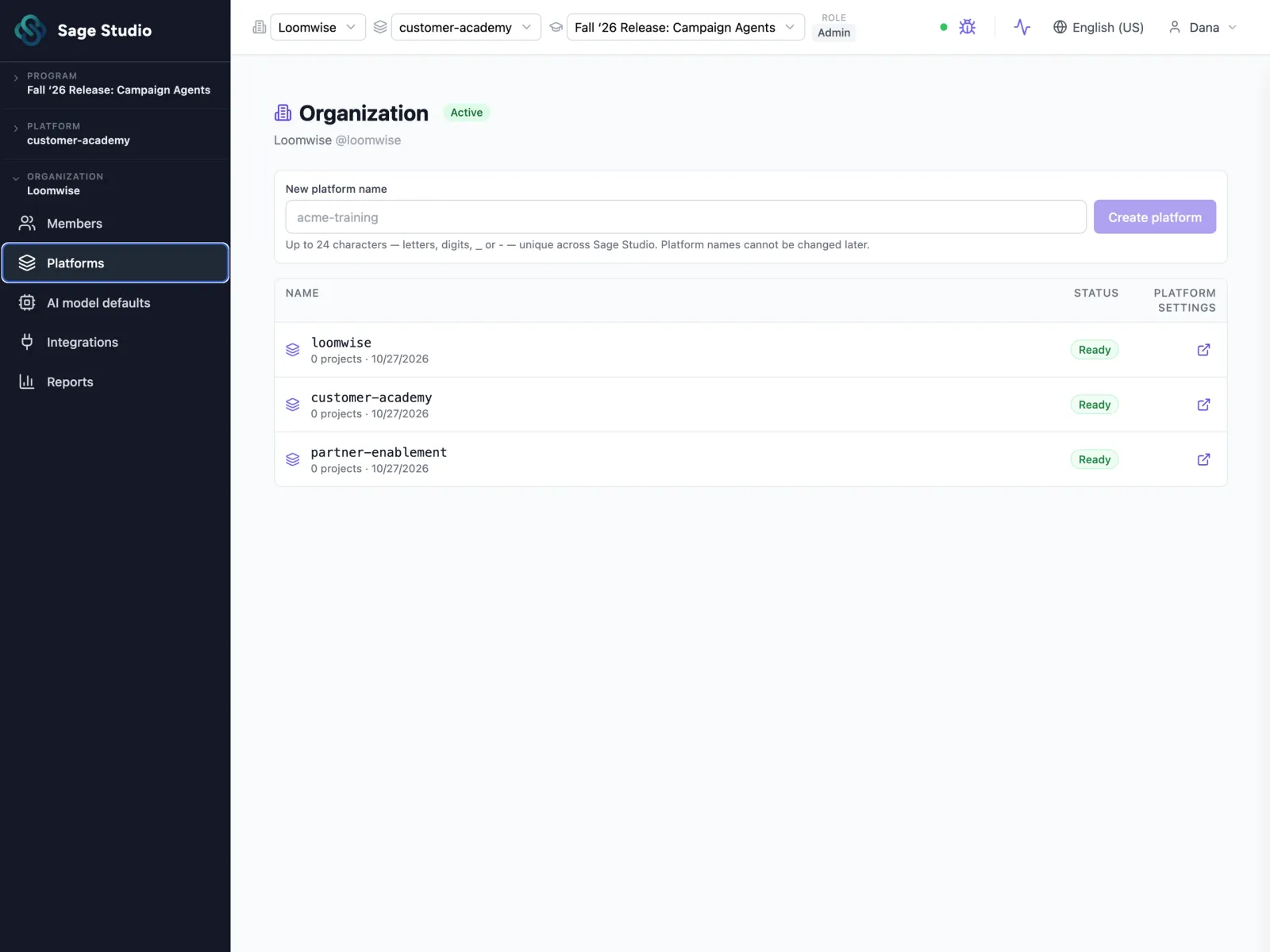
It's time to get off the content dreadmill
You know the one.
- You're behind the release before the course is even done.
- A release too small to announce still leaves 50 embedded guides to update.
- The learning experiences you ship don't reflect what your team can do.
- The design is in a spreadsheet, the content is in Word, and the build is in three other tools.
- Everything that makes the process work is in a few people's heads.
- Anyone with a $20 AI tool subscription thinks they can do what your team does.
From source to shipped, in one platform
Tell us what's slowing your content down, and we'll show you how Sage Studio handles it on a 30-minute call.
See Sage Studio in action