Publish to the academy, help center, and product pages you already run

Export a finished learning experience as a SCORM 1.2 package, an Open edX course, or a standalone package for the academy you run today. Embed any asset in your help center or product pages, and when you update it once in Sage Studio, every page it's linked from shows the new version.

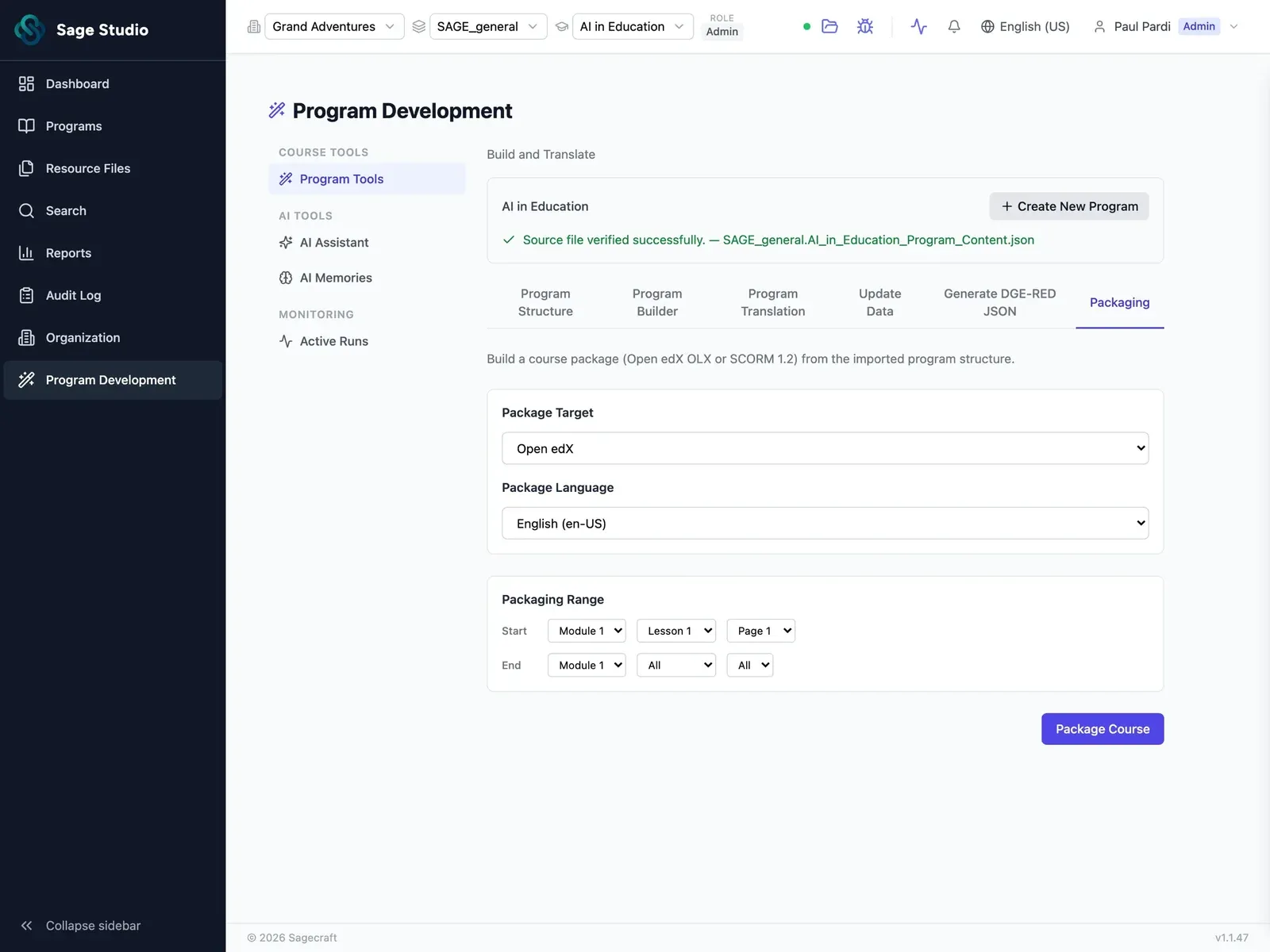
Sage Studio packaging screen: choose the package target and language, set the range of modules and lessons, then package the course.

One small release, 50 embedded guides to update

A button moves in this week's release, and the walkthrough that shows it now lives in an LMS course, three help articles, and a product page.

On a team of one to five, you fix each copy by hand, one platform at a time.

The copy nobody finds keeps showing the old button, and customers who follow it end up writing to support.

Put assets where customers ask the question

A customer stuck on a feature searches the help center or opens the page they're stuck on, and your academy is three clicks away.

Embed any asset from Sage Studio in the help article or product page where that question comes up.

  • Help center: drop a video, a knowledge check, or a step-by-step process into the article customers already find, with an embed link added as an iframe.
  • Product pages: add a short activity to the page where the feature lives.
  • Any asset: quizzes, video scripts turned into videos, accordions, timelines, and drag-and-drop activities.
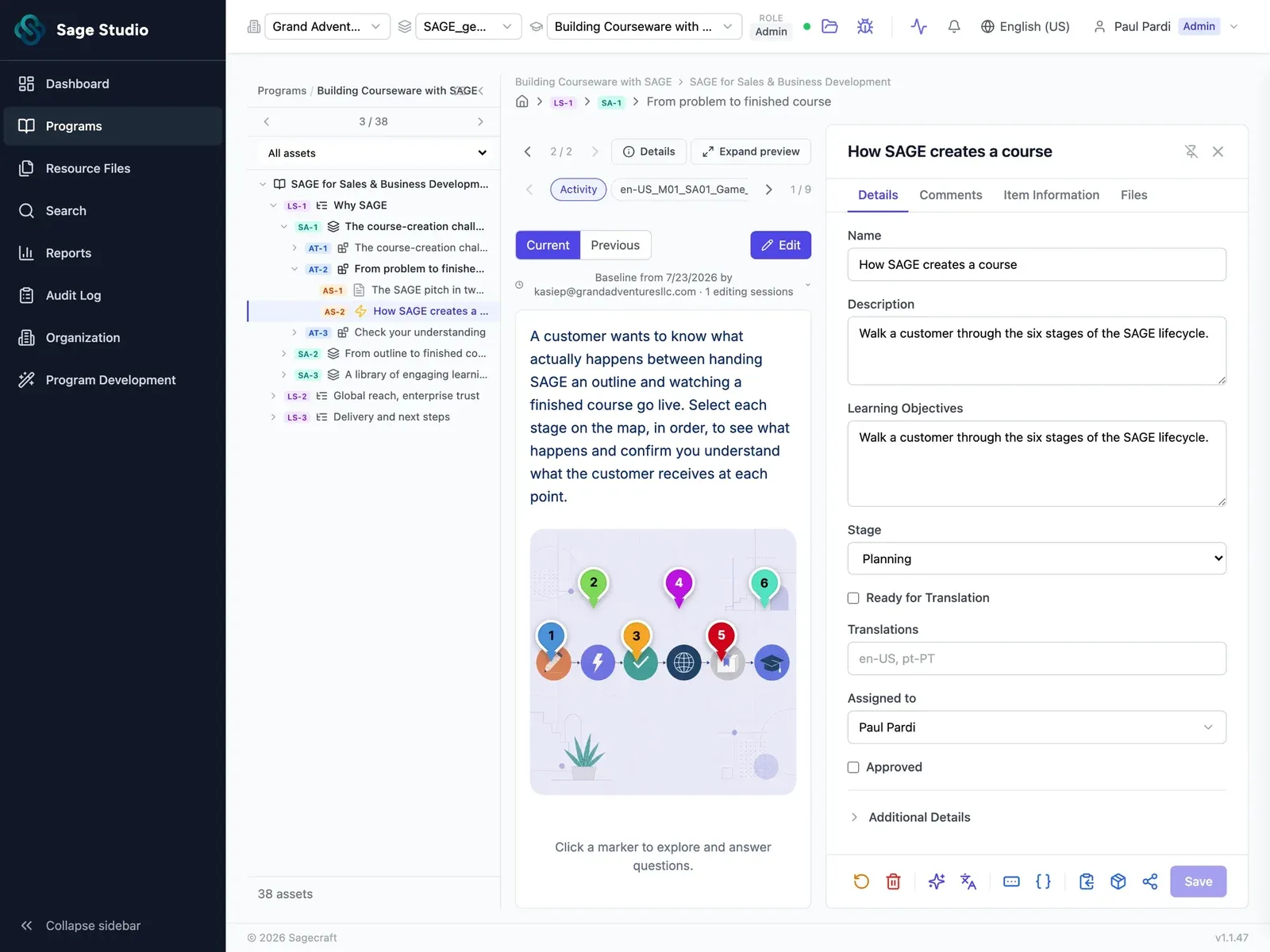
Sage Studio, Publish: Put assets where customers ask the question (placeholder screenshot)

Update an asset once, and every linked page shows the change

When the product changes, every help article and product page that shows the old version has to be tracked down and fixed.

Update the asset once in Sage Studio, and every page that links to it shows the new version.

  • Linked assets update everywhere they're embedded, so the walkthrough in the help center and the one on the product page match.
  • Exported packages stay as you exported them: after an update, export the SCORM, Open edX, or standalone package again and upload it to your LMS.
  • Served immediately: an update is served to every linked page as soon as you make it.
Sage Studio, Publish: Update an asset once, and every linked page shows the change (placeholder screenshot)

Package the learning experience for your LMS

Your academy runs on an LMS, and every learning experience you build has to arrive as a package it can load.

Sage Studio packages the finished learning experience as SCORM 1.2 or Open edX OLX, ready to upload to the LMS your academy already runs on.

  • SCORM 1.2 for LMSs that import SCORM packages.
  • Open edX OLX for academies built on Open edX.
  • Standalone package for a learning experience that lives outside an LMS: run it on its own, or host it on your own website.
Sage Studio, Publish: Package the learning experience for your LMS (placeholder screenshot)

Will it work with your academy?

If your LMS imports SCORM 1.2 or runs on Open edX, a Sage Studio package can be uploaded to it.

FormatUse it whenStays current after an update?
SCORM 1.2Your academy runs on an LMS that imports SCORMExport again and upload
Open edX OLXYour academy runs on Open edXExport again and upload
Standalone packageThe learning experience lives outside an LMSExport again and replace
Embedded assetThe asset sits in a help article or product pageYes, updates everywhere it's linked

SCORM 1.2

Does it report completions and quiz scores to my LMS?
It reports completion and pass/fail to your LMS.
Why SCORM 1.2?
SCORM 1.2 is the version most LMSs import. SCORM 2004 and xAPI are on the roadmap.

Open edX OLX

Does my course structure come through?
Yes. Sections, units, and assets come through in Open edX in the structure you set in Sage Studio.
Do the interactive assets still work in Open edX?
Yes. Quizzes and interactive activities work inside Open edX.

Standalone package

Where can I put a standalone package?
Anywhere you can host web files. Each activity has its own HTML file: open it to run the activity on its own, or add the package files to your website and show the HTML file in an iframe. Everything runs from your own site.
Does it need an LMS?
No. Each activity runs on its own from its HTML file.

Next stageManage

Once your learning experiences are live, Manage is where you set up separate workspaces for each team, manage admin, connect integrations, and translate content.

See how Manage works

Bring the name of the LMS your academy runs on

See a learning experience go from Sage Studio into an LMS package and a help article, and ask how it fits the academy and help center you run today.

See Sage Studio in action

See Sage Studio in action

Pick a time for a 30-minute call with our team, with Sage Studio on screen.

  1. Pick a time
  2. Your details
  3. Done

Choose a day to see open times.